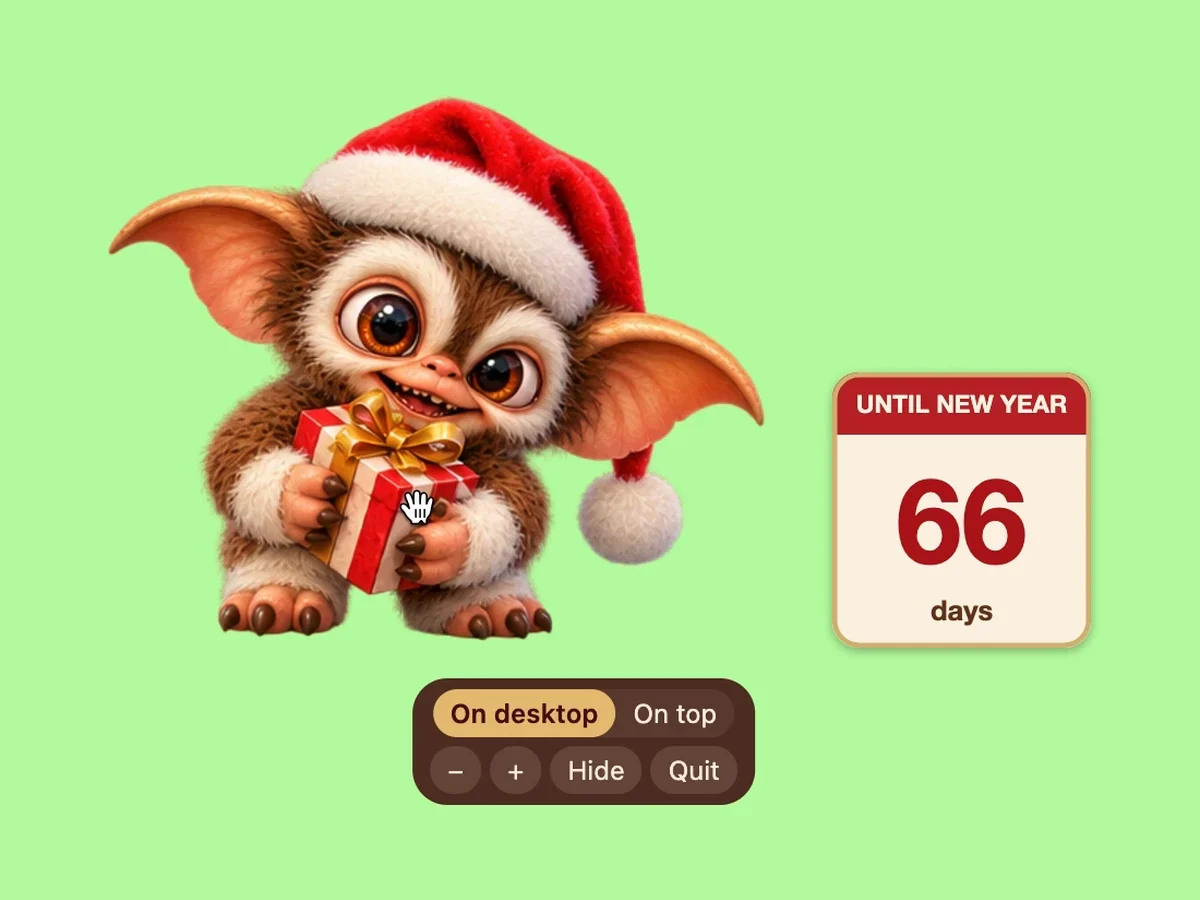
Make him bigger or smaller with the + and − buttons.
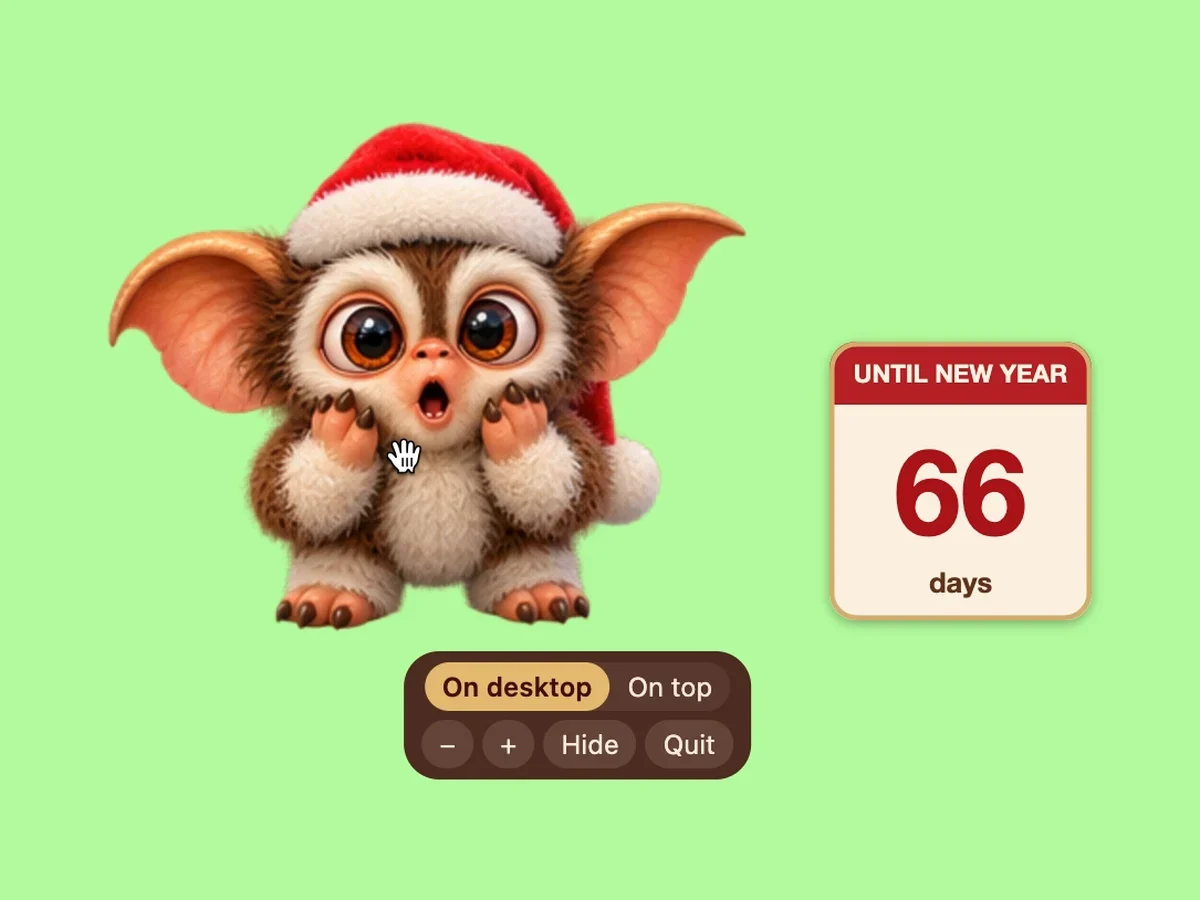
Click him and he reacts: he shows a gift, looks surprised, winks, gets curious or dozes off.
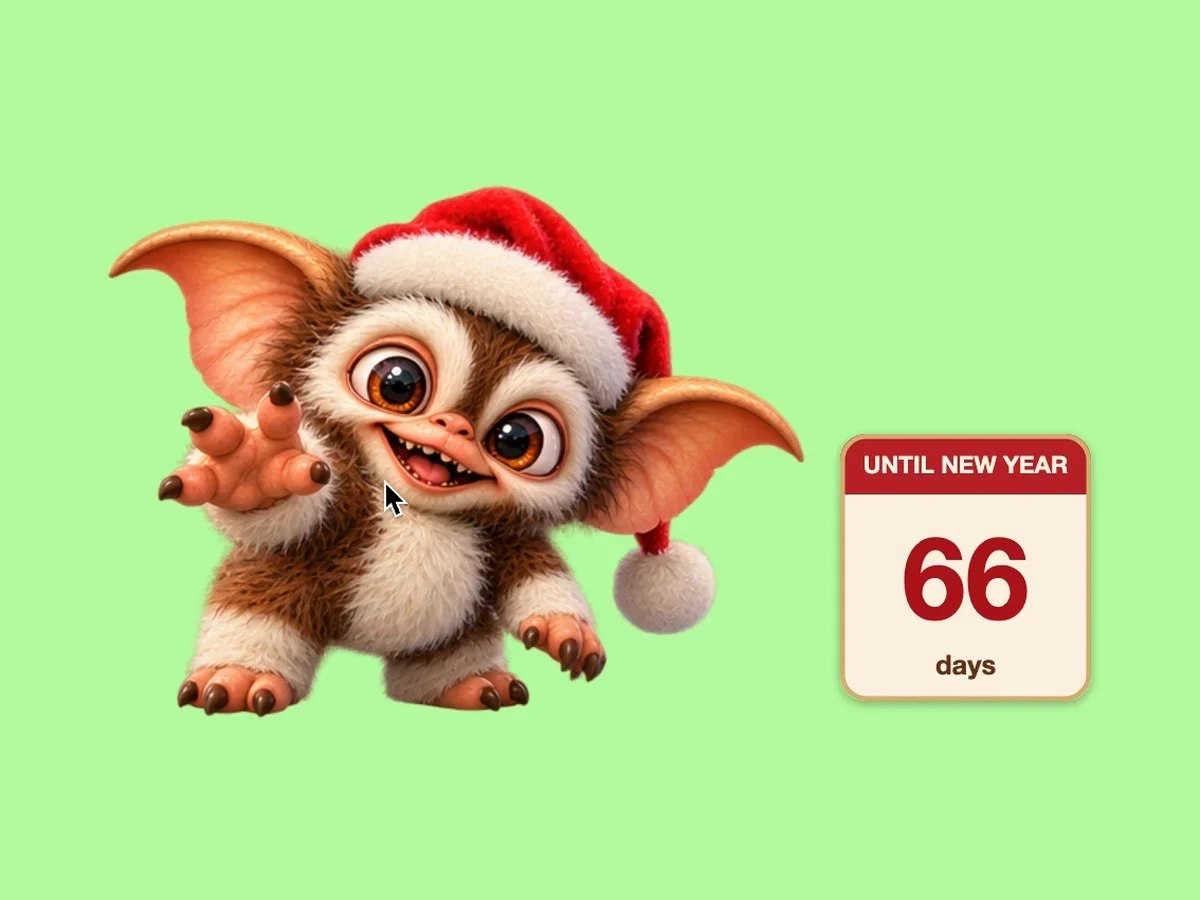
A little calendar next to him counts the days until New Year.
Keep him on the desktop under your windows, or on top of all windows.
Hide him to the 🎁 icon — in the menu bar on a Mac, in the notification area on Windows — and bring him back from there.
App languages: English, Ukrainian and Russian.
He starts when you sign in to your computer; you can turn this off in the 🎁 menu.
Requirements
macOS
macOS 13 Ventura or later. The app is built for Intel Macs; on Macs with Apple silicon (M1 and newer) it runs through Rosetta 2, which macOS offers to install.
Windows
Windows 10 or 11, 64-bit.
How to install
macOS
Open the downloaded DMG and drag the app to Applications. In Applications it is called “MargoStory Christmas Gremlin”. The app is not from the App Store and is not notarized by Apple, so the first time macOS may say it can’t check the app. Then open System Settings → Privacy & Security and click “Open Anyway”.
Windows
Run the installer: it installs the app for your user account and adds a desktop shortcut “MargoStory Christmas Gremlin”. The installer is not code-signed, so Windows SmartScreen may show “Windows protected your PC” — click “More info”, then “Run anyway”.